Running a race
Everything one race needs: creating it, taking entries, the start and the finish on race day, and publishing the results.
1
Create the race
Everything starts in the club panel at race-hub.org/en/organizer. Click New race.
- Enter the name, the start date and time, an optional signup deadline and the description competitors see on the race's public page.
- The race is saved Awaiting approval: you see it in the panel straight away, and it goes public once we approve it — usually the same day. An e-mail with its links is on its way to you too.
- The race's courses, categories, signup fields and entry fee are set up by us — tell us what you need and the race is ready for entries.


2
Entries
The Competitors button next to the race opens the list of everyone entered:
- Anyone who entered through the public form is already on the list — there is no need to enter them again.
- Add a walk-up with New entry: the public signup form, plus a Start number and a Paid box. Save it with a number and Paid ticked and the competitor is started straight away, with no need for the Start button. Without a number, or unpaid, they wait on the list and you start them later like anyone else.
- Every competitor needs a start number — it is how the timekeeper recognises them at the finish. A number somebody already has is refused.
- On race day, when a competitor reaches the desk, click Start on their row — or type in their start number, which starts them too. That confirms the entry and marks it paid, and the Started column shows the time.
- Signup changes records every change: who changed what, and when. An empty user means the competitor fixed the entry themselves, through the link in their e-mail.
Useful tips
- The filters above the table find a competitor by number, name or club. The Started filter shows who has not turned up yet.
- Someone who crosses the finish without being started keeps their time — they are ranked only once you confirm their entry (step 4).


3
The start and the finish
Timing happens in the Timekeeping app: the Timing button on a race opens it in a new tab, and on a phone it is right at race-hub.org/timing. You are signed in as the club, so no separate account is needed.
- If the club has one race today, the app opens straight into it. Otherwise today's races are on top, yesterday's and tomorrow's below, and opening a race nowhere near today asks for confirmation — so times are never recorded against the wrong race.
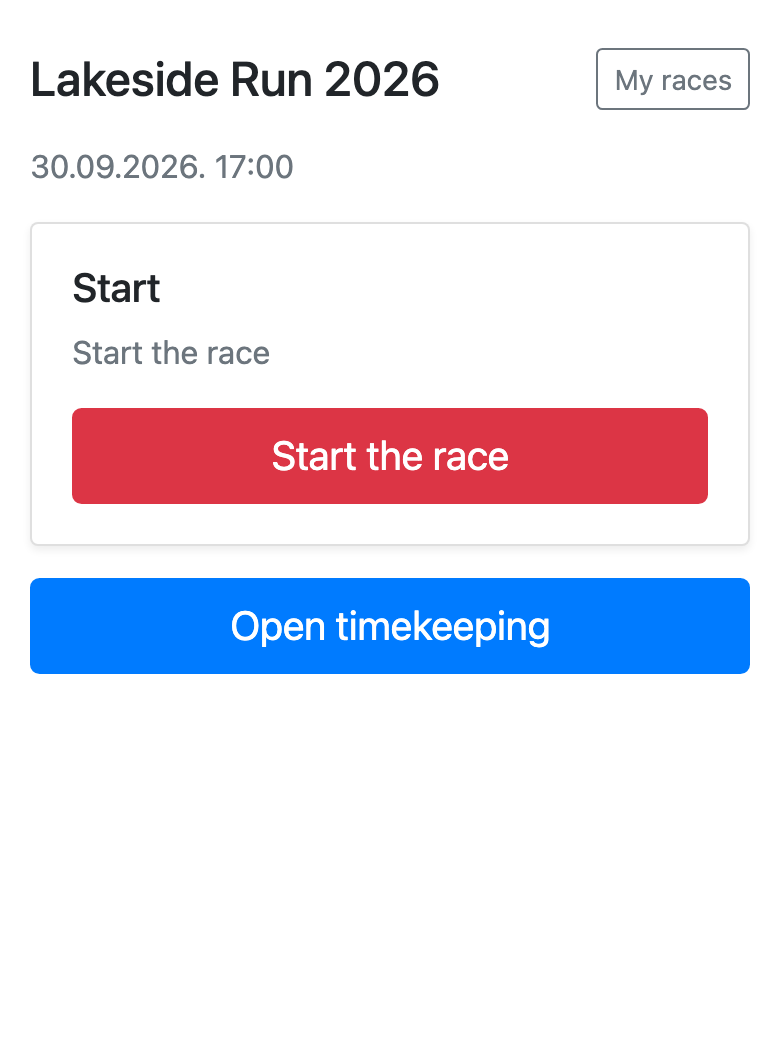
- When the field sets off, click Start the race. If the courses leave at different times (waves), each wave has a button of its own.
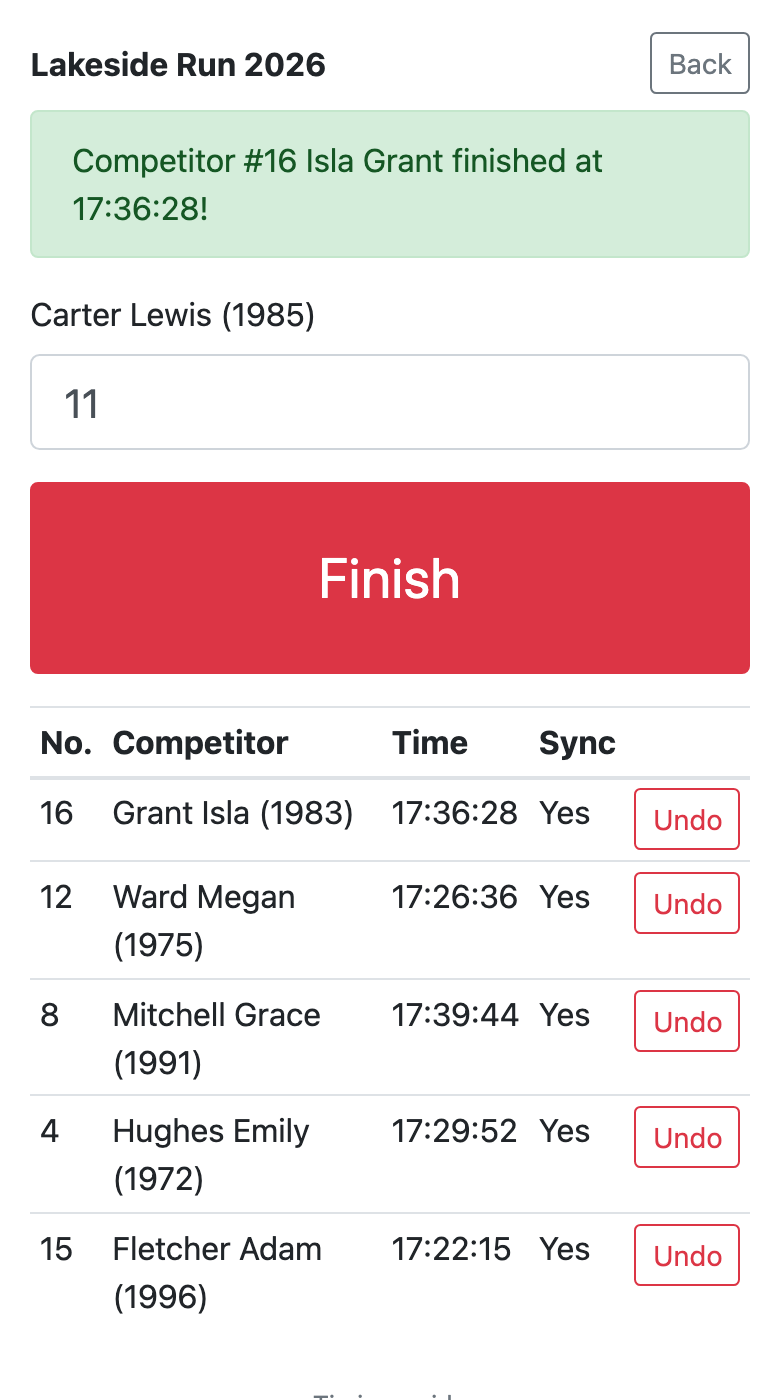
- Open Open timekeeping, type the start number of the competitor crossing the line and press Finish. The name for that number appears above the field as you type, so a wrong number shows before you confirm.
- Need a volunteer from outside the club at the finish? Tell us: we open them a timekeeper account that sees only your race, so you never hand over the club's password.
Note
- Undo a wrong entry with Undo in the table below.
- Fix a start given by mistake with Undo start on the race screen and start it again when it is time.
- Nothing is lost without signal: entries are kept on the phone and sent as soon as the connection is back — the Sync column shows whether an entry has arrived.
4
Results and closing the race
The Results tab shows everyone who started or crossed the finish, with a status of Finished, In race, DNF, DNS or DSQ. Click a status to change it.
- A time with * means the competitor crossed the finish with no entry recorded: either somebody forgot to start them, or they never came to the desk and did not pay. The time runs from the race start and is not ranked. Once the entry is sorted out, click Confirm entry.
- Once the last runner is in, click Close the race: everyone who started and did not finish becomes DNF, so the public results no longer show anybody In race.
- The public results fill in from the very first finish, by course and category — share the link with the competitors while the race is still on.
Note
- You can correct a time two ways: type the exact clock time of arrival in Finished at, or the total race time in Time.


Activating a race
A race created by a club is saved as inactive and is not shown publicly until we review it. That is deliberate, not a fault. You can see it in your own dashboard right away, marked as awaiting activation, and you can keep editing it while it waits.
Usually the same day. If you are in a hurry, write to us through the contact form and we will speed it up.
Yes, both before and after activation. Your edits stay; activation does not undo them. The one exception is the race language: it is set when the race is created and does not change afterwards, because it decides the language of the timing screens, which must not switch under the volunteers mid-event.
Entries and payment
Yes. Which fields are asked for (club, year of birth, gender, e-mail and the rest) comes from the field set assigned to the race. If you need a different set than the race has, write to us and we will set it up.
Enter the club's IBAN in Profile. Online payment and the fee on a race are switched on by us — get in touch. The competitor then receives, with the signup confirmation, the exact amount, the payment reference and an HUB3 barcode to scan in their banking app. The amount is the fee plus any paid extras they chose.
Send us the bank statement from your online banking (CSV or XLS) and we will import it: payments are matched to entries by the payment reference and marked paid only when the amount matches exactly. A single payment you can mark yourself — the Paid box on the competitor's entry (Edit on the Competitors tab).
Yes. With the entry confirmation they received an edit link, good for one edit; they can request a new one from the entry page, and it is sent to the same address the entry was made from. They cannot change the e-mail address or the race, and cannot change priced items once a payment has been recorded. Every change is listed under Entry changes, showing what changed and who changed it.
Results and ranking
They crossed the finish with no entry recorded: either somebody forgot to start them, or they never came to the desk and did not pay. Their time runs from the race start and is not ranked. Once the entry is sorted out, click Confirm entry on the Results tab — or start them on the Competitors tab. That puts them in the ranking.
When the last competitor is in or has certainly dropped out. Closing only sets DNF on whoever is still In race — it locks nothing. You can still change results and statuses as before.
Right at the finish: Undo in the Timekeeping table, then enter the right number. A result created only by that wrong entry disappears with it. Later: on the Results tab put the wrong competitor's status back and type the right one's time into Finished at.
Need help?
Get in touch and we will gladly help you set up your race.