For timekeepers
Timekeeper guide
For the volunteer at the start and the finish: how to sign in, start the race and record competitors at the finish — on a phone, with nothing to install.
1
Signing in
On your phone, open race-hub.org/timing and sign in with the username and password the club gave you. If you are timing for your own club, the club's login works too — no separate account needed.
- You see only the races the club has put you on. If it says you have no races assigned, ask the club.
- Today's race is at the top, in green: tap Open timekeeping. If there is only one today, it opens by itself.
- A race nowhere near today asks for confirmation before it opens — so no time ends up in the wrong race.
Useful tips
- Sign in the day before and add the page to your phone's home screen: on race day you are in with one tap, and you know the password works.
- Invited by e-mail? The Open timekeeping button in the mail signs you straight in, nothing to type. The same button comes again in the reminder an hour before the start.
2
The start
Every competitor's time counts from the moment the start is pressed. If you are at the start, you press it.
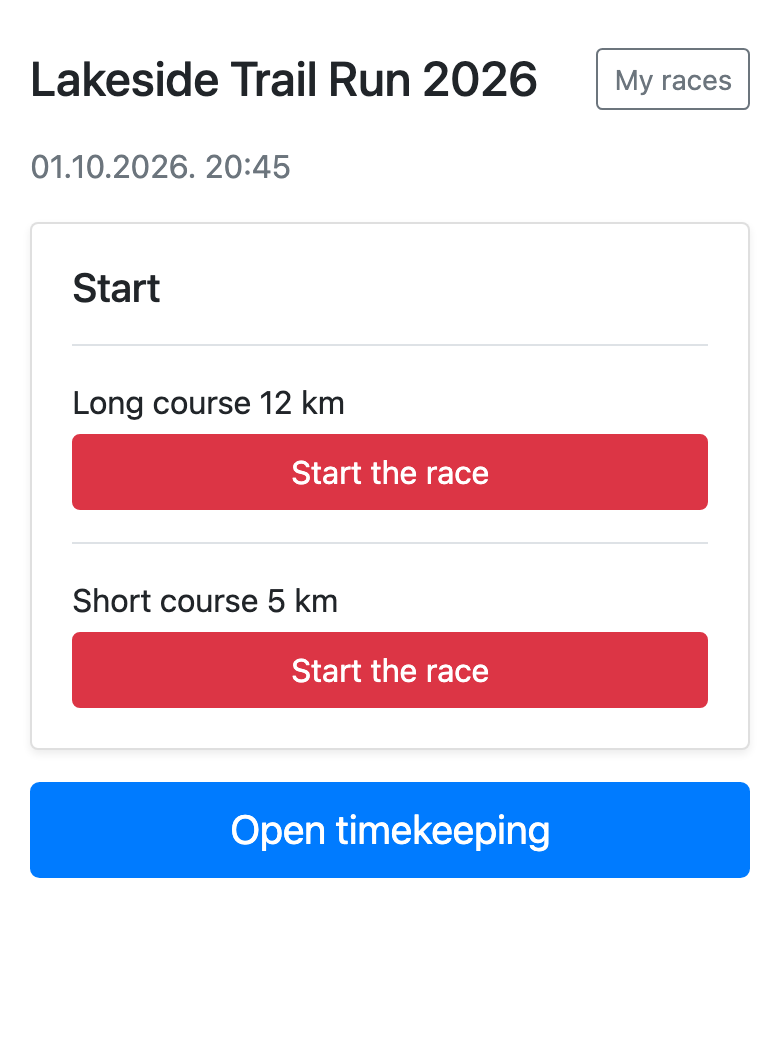
- The moment the field sets off, press Start the race. The start time appears below it.
- If the courses leave at different times, each start has its own button with the courses' names above it — press each as that group sets off.
- If somebody else gives the start, leave it alone: you will see the start time, and go straight to Open timekeeping.
Note
- Pressed too early or by mistake? Undo start clears it; press Start the race again when the field really sets off.
3
The finish
At the finish you enter the start number of every competitor who crosses the line. The time is taken the moment you confirm the entry.
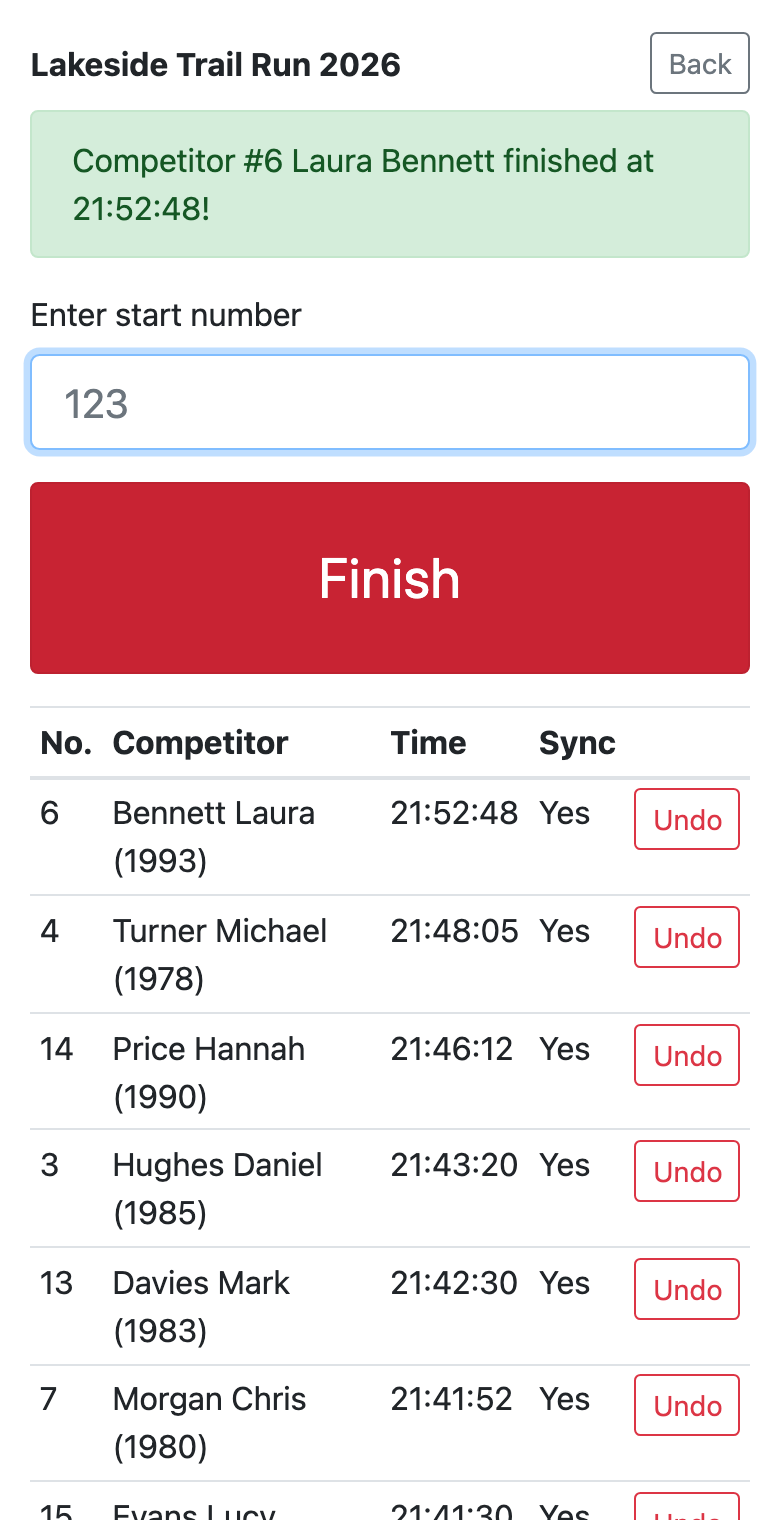
- Type the start number and press Finish.
- It asks whose number that is ("Confirm #101 Ana Smith at the finish?"). Confirm exactly as they cross the line; if the name is wrong, cancel and type the number again.
- The entry appears in the table below with its time. Yes in the Sync column means it has arrived, No that it is waiting for signal.
- Several phones can record at the same finish at once — handy when a group comes in together.
Useful tips
- Type the number while the competitor is approaching, and press Finish and confirm as they cross the line. Lengthen the screen lock timeout so you do not have to unlock the phone for every competitor.
When something goes wrong
Enter the right number straight away, then press Undo on the wrong entry's row in the table below and confirm. The right entry is timed when you confirm it; if more than a few seconds had passed since the line, give the club the time on the wrong row so they can correct it.
No. Entries are kept on the phone and sent by themselves once the connection is back — the Sync column says No until they arrive. Keep timekeeping open; if you close it, open it again on the same phone in the same browser and sending carries on.
If you read the number right, confirm: the time is still recorded, and the desk gives it to whoever holds that number later. If you mistyped it, cancel and enter the right one — and if you already confirmed it, do not worry: nobody gets that time until somebody assigns it.
Do nothing. The earlier time counts, and the second entry does not change it.
The club gives you the username and password, and only the club can change them — ask them. If you can sign in but the race is not listed, the club has not put you on it yet (in a league: on that round).
Need help?
Ask the club that invited you about the race itself. If timekeeping does not work as described here, get in touch.